

Hi AI enthusiasts!
Are you still paying that $20 monthly subscription fee to OpenAI or Gemini? While cloud-based models are undeniably powerful, have you ever considered how great it would be if your own computer could run a comparable, completely free, and commercially-licensed AI model?
On April 2, 2026, Google officially released Gemma 4. With this release, Google has shown its commitment to the open-source community by porting the core technology of Gemini 3 into an open model. Today, we’re going to introduce you to this performance powerhouse and provide a step-by-step guide on how to deploy it on macOS or Windows using Ollama in just a few minutes!
Why Gemma 4 is the Must-Have AI Model of 2026
Gemma 4 isn’t just another incremental update; it sets a new benchmark in the open-source landscape. Here are the highlights that make it stand out:
Full Commercial License: Unlike many models that restrict commercial use, Gemma 4 is incredibly generous. Whether you’re developing an app or building automation tools for your company, you can use it without paying any licensing fees to Google.
256K Context Window: This massive window means you can feed the model entire technical manuals or tens of thousands of lines of code at once. It won’t “forget” the beginning of the text like older models; its retention is remarkable.
Native Multimodal Input: Gemma 4 now comes with “eyes” and “ears.” You can upload a complex financial statement or an audio recording, and it will analyze them with human-like precision.
Ultimate Privacy: Since it runs locally, all your conversations, private files, and startup ideas never leave your machine. Your data stays on your hard drive, ensuring the highest level of security.
Is Your Hardware Ready?
Before installation, let’s check if your hardware can handle it. Gemma 4 comes in various sizes; we recommend choosing based on your specs:
Mac Users (Apple Silicon):
Entry-Level: M1 / M2 / M3 / M4 series with 16GB RAM or more. This is sufficient to smoothly run the
E4Bor26B MoEversions.Power Users: 32GB RAM or more. You can tackle the full-dense
31Bversion, which runs at surprisingly fast speeds.
Windows Users (NVIDIA GPU):
Entry-Level: RTX 3060 / 4060 (8GB VRAM or more). It handles the
E4Bversion with ease.Power Users: RTX 3090 / 4090 (24GB VRAM). This is the gold standard if you want to run the flagship
31Bmodel at full speed.
Three-Minute Quick Start: Installing Gemma 4 with Ollama
Ready to save that $20? Just follow these steps:
Step 1: Download and Install Ollama
Think of Ollama as the “universal media player” for the AI world. The installation process is very intuitive.
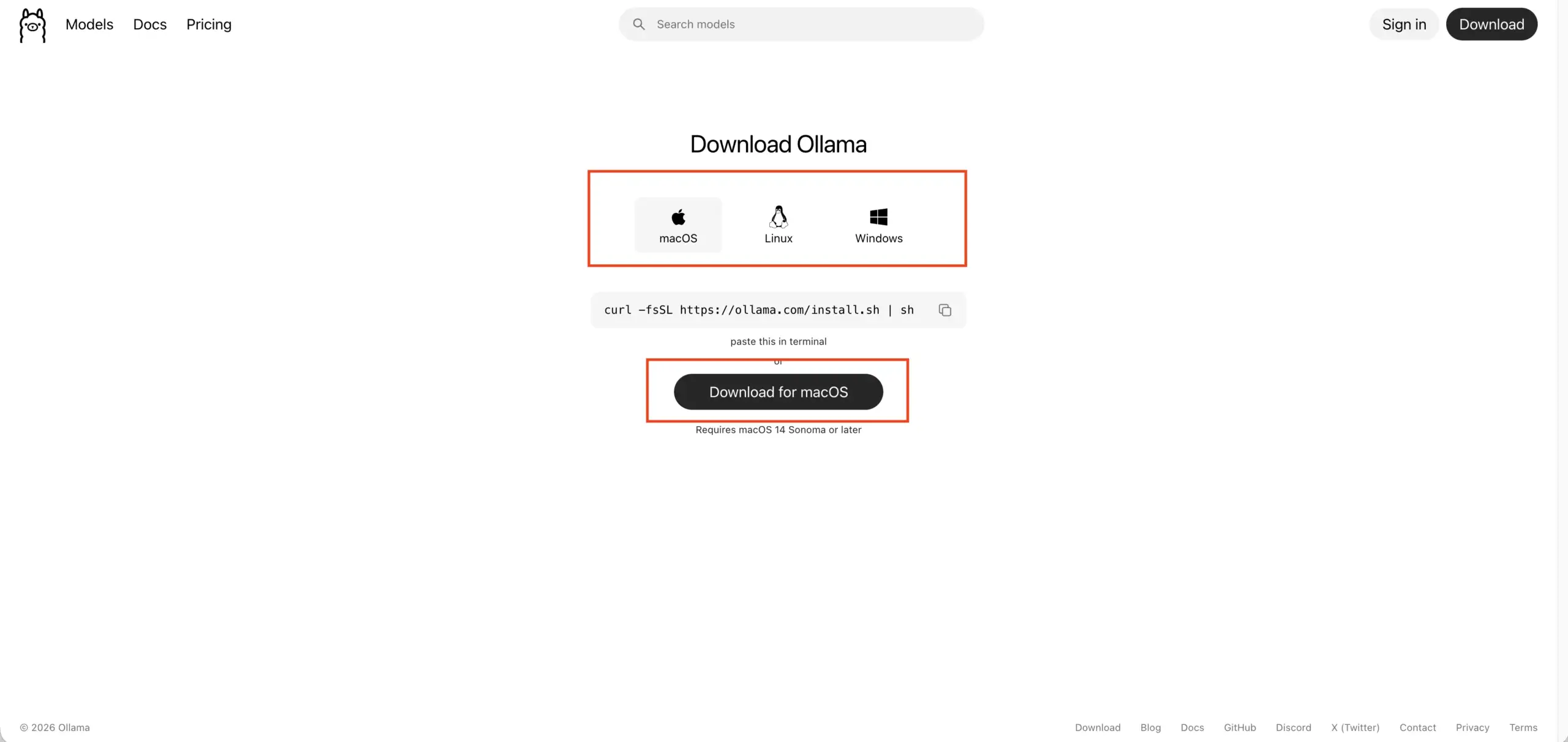
Visit the Ollama official website.
Select the version for your OS (macOS or Windows) and click Download.
Run the installer. It’s as simple as installing Google Chrome.
| Operating System | Installation Steps | Post-Installation |
|---|---|---|
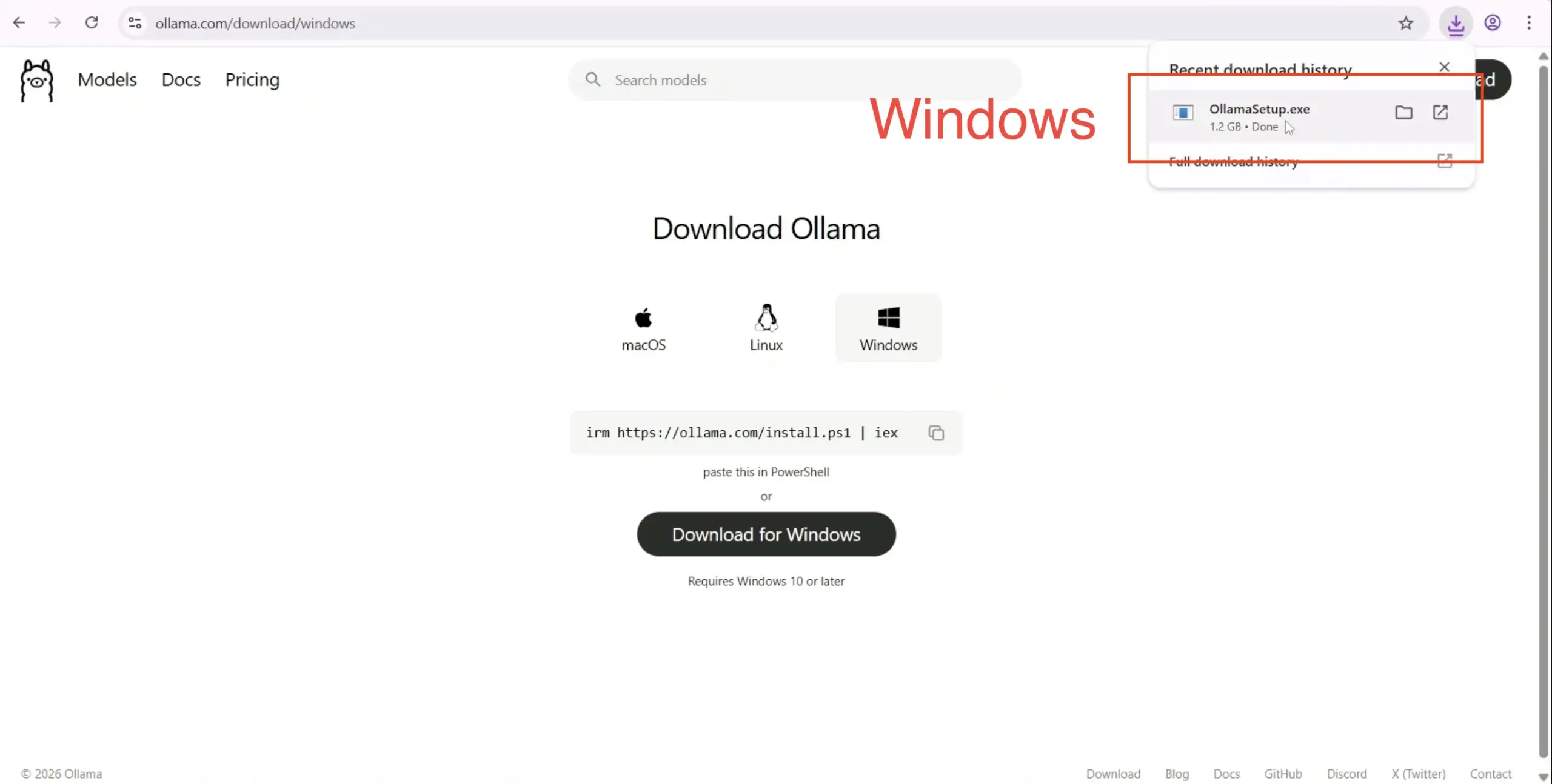
| Windows | Download OllamaSetup.exe, double-click to install, and follow the prompts. | An Ollama icon (the alpaca) will appear in the system tray, indicating it’s running in the background. |
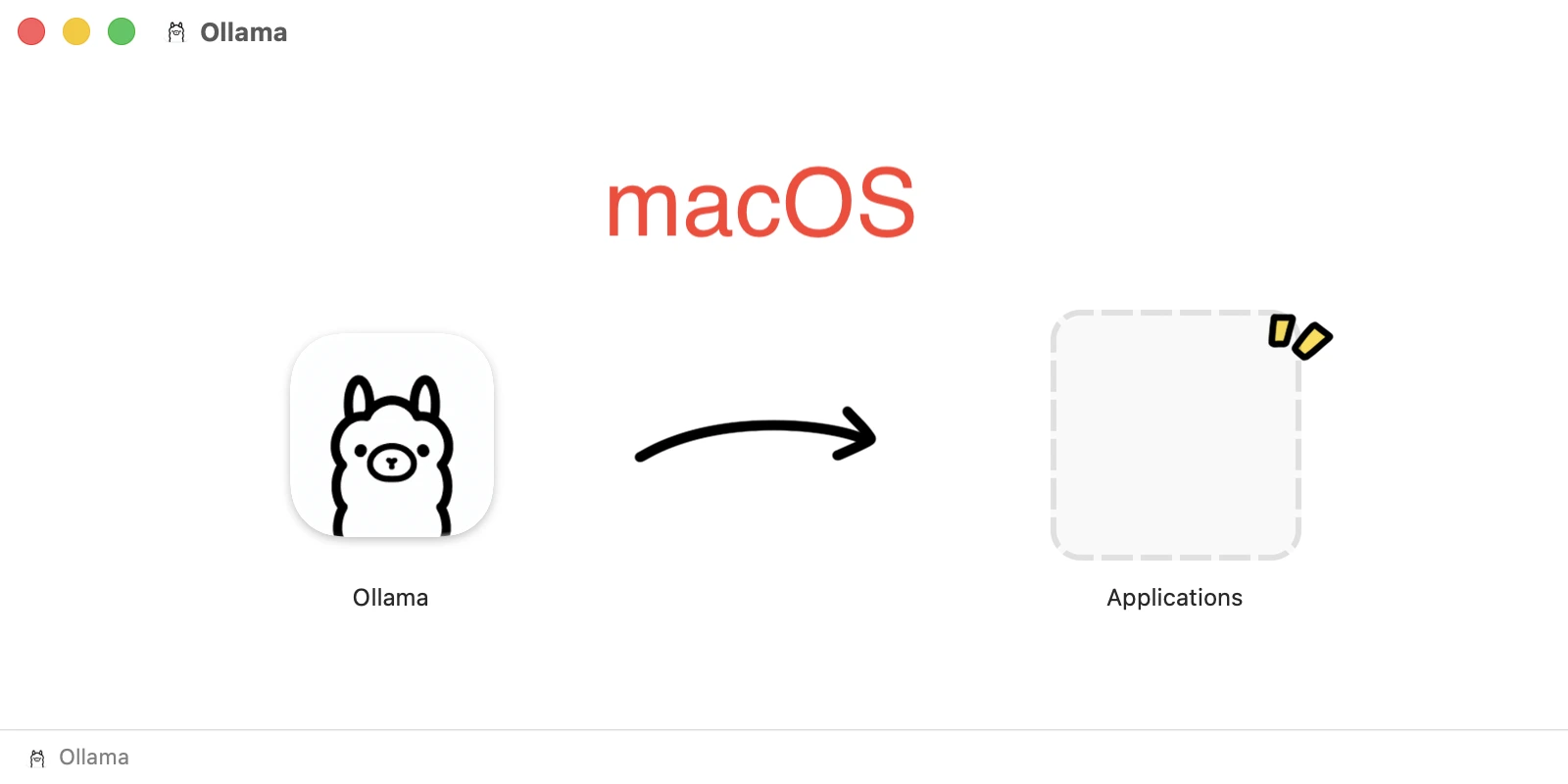
| macOS | Unzip the download, drag Ollama.app to your Applications folder, and double-click to launch. | An Ollama icon will appear in the top-right menu bar. You can toggle “Start at login” here. |
Step 2: Launch Gemma 4
Once installed, you can open Ollama directly.
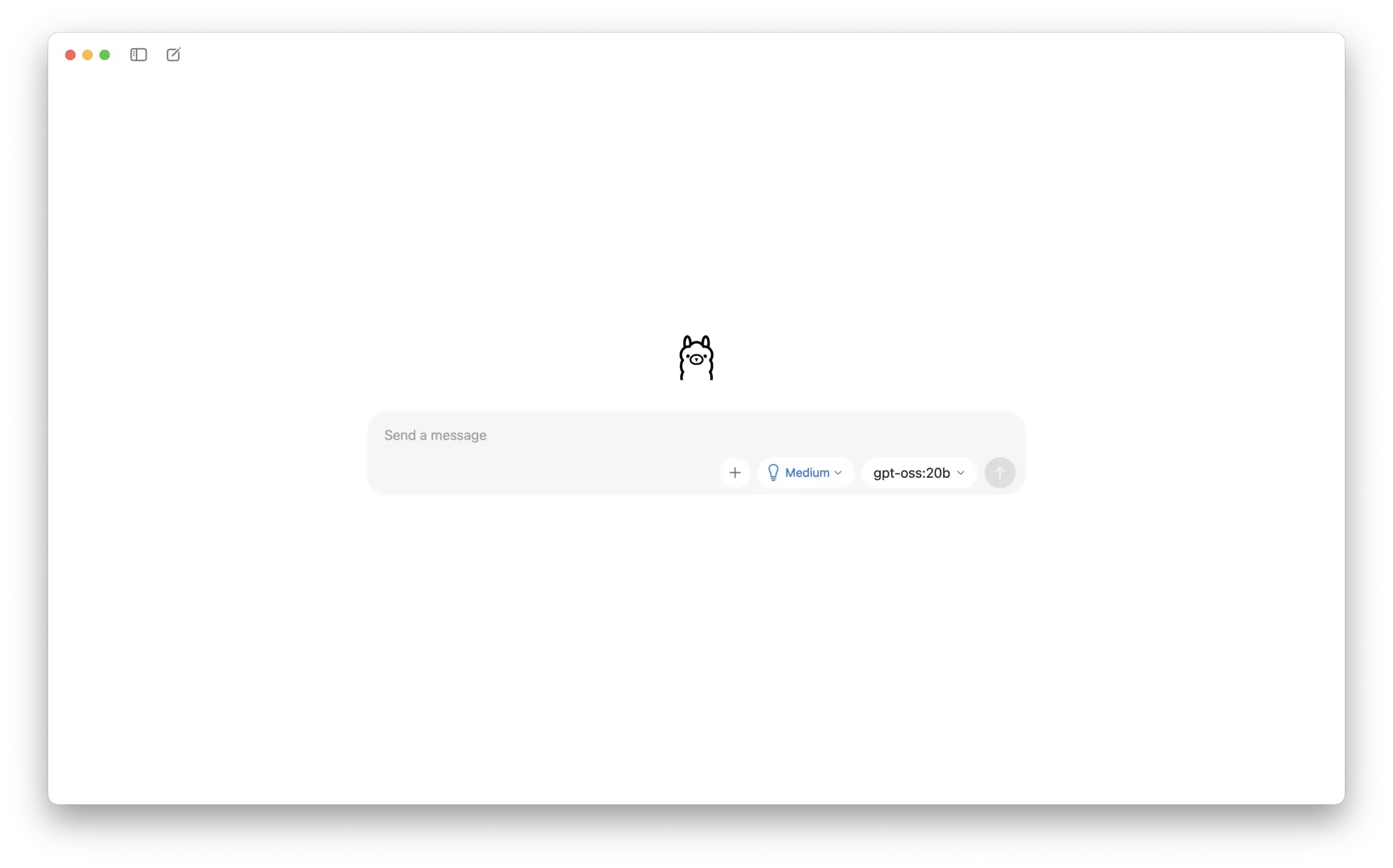
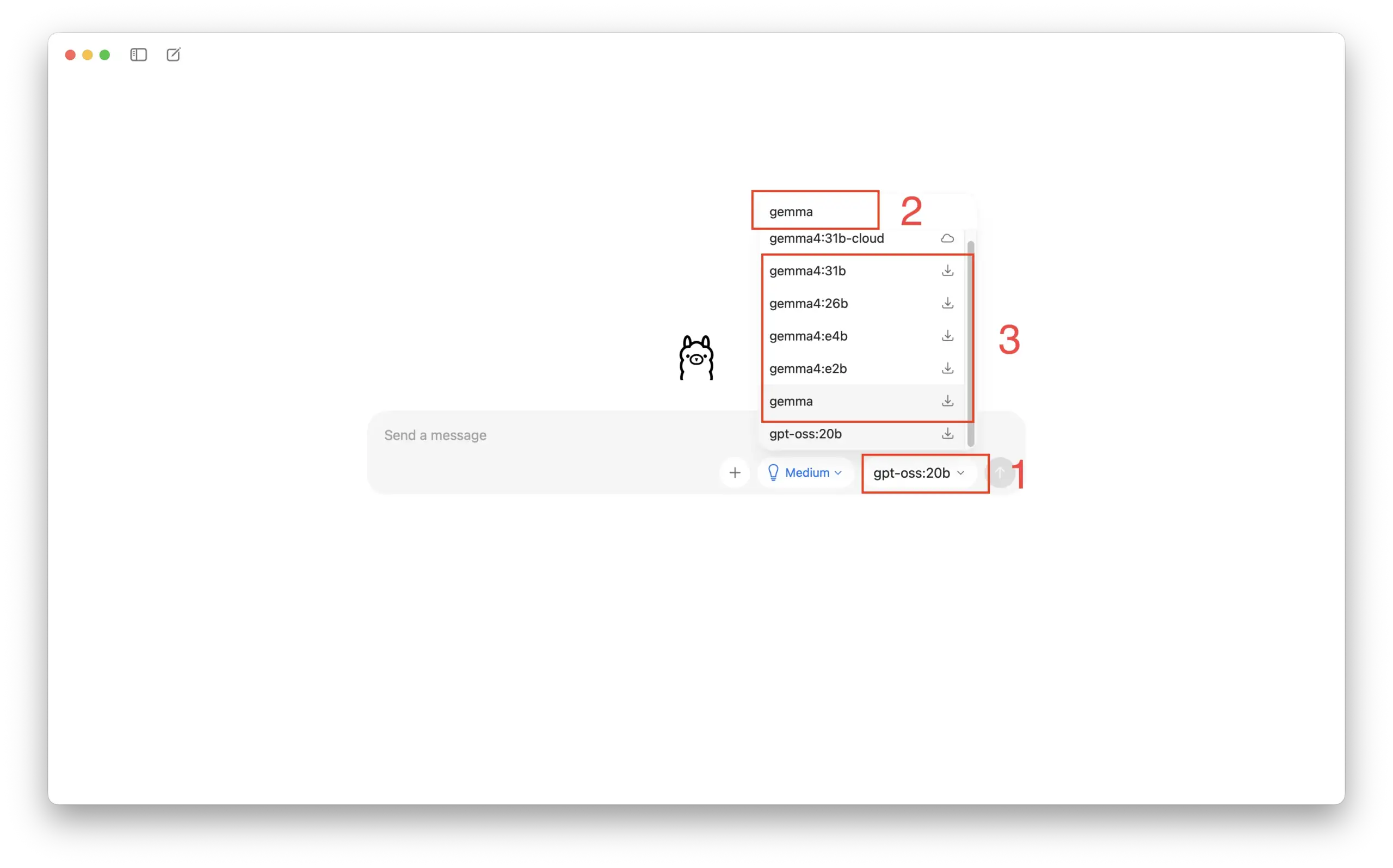
Click the designated area in the menu to search for “Gemma” and select your preferred version:
Standard Recommendation: (
E4B, 8GB+ RAM)Minimal Version: (
E2B, 4–8GB RAM)Recommended (Best Value): (
26B MoE, 16GB+ RAM)Flagship Version: (
31B, 32GB+ RAM)
If the download doesn’t trigger automatically, you can use the Terminal method:
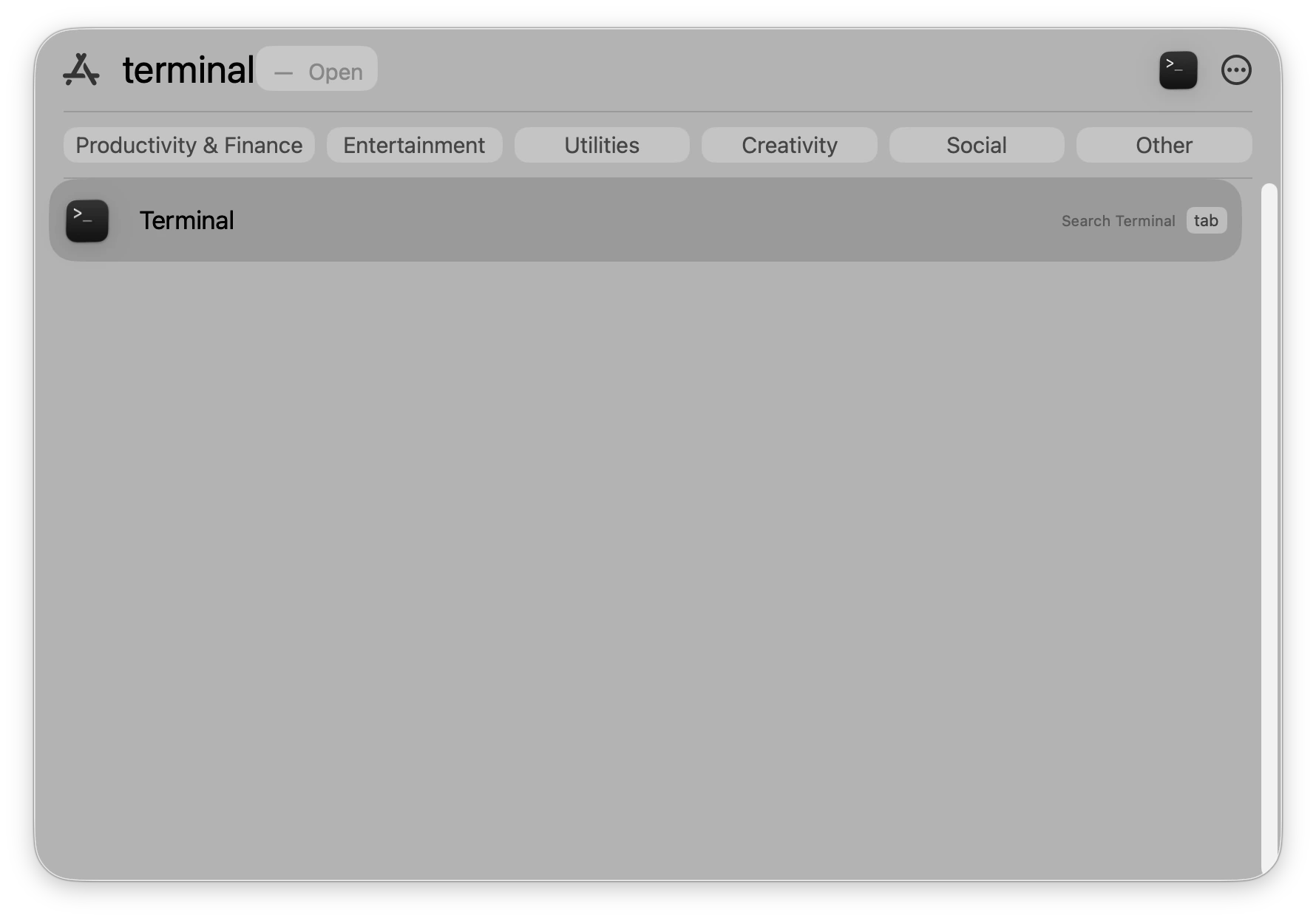
macOS: Press
Command (⌘) + Space, type “Terminal,” and hit Enter.
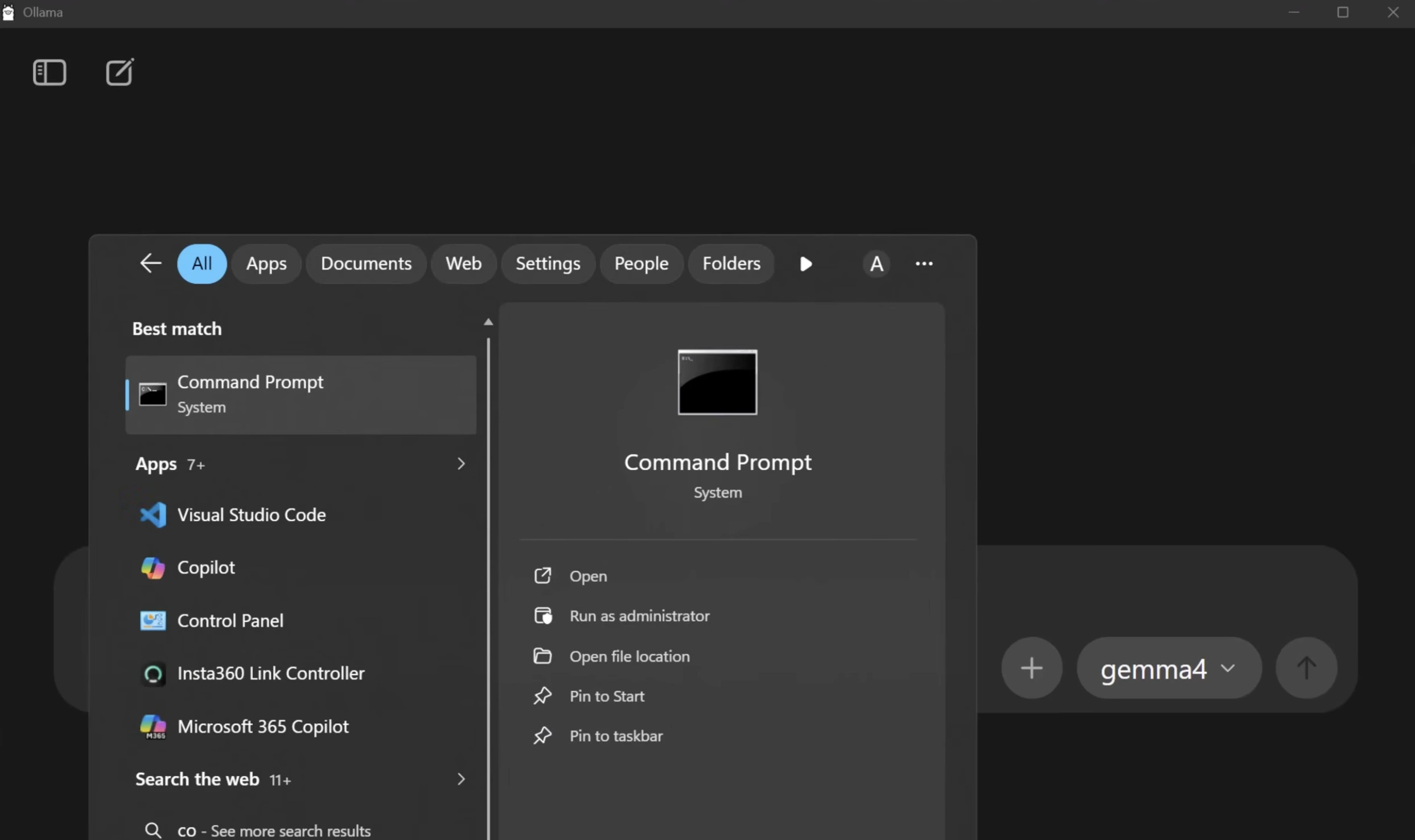
Windows: Press the Win key, search for “Command Prompt,” and open it.
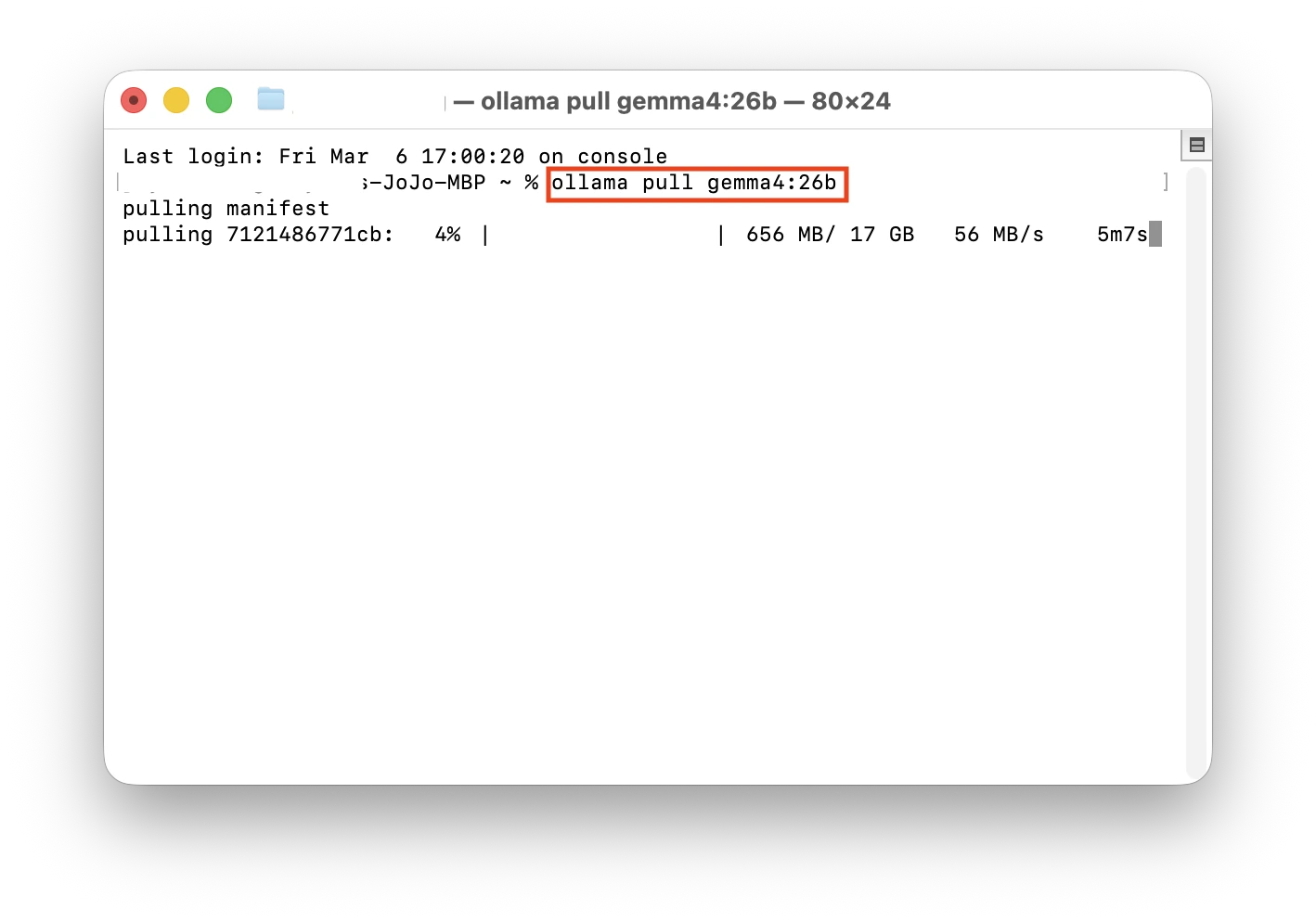
Type the command for your chosen version and press Enter:
| Gemma Version | Terminal Command |
|---|---|
| Default | ollama pull gemma4 |
| Standard (E4B,8GB+ RAM) | ollama pull gemma4:e4b |
| Minimal(E2B,4~8GB RAM) | ollama pull gemma4:e2b |
| Recommended(26B MoE,16GB+ RAM) | ollama pull gemma4:26b |
| Flagship(31B,32GB+ RAM) | ollama pull gemma4:31b |
For this demo, we installed the 26B version (requires at least 32GB RAM) and the default version, which took about 5 minutes each.
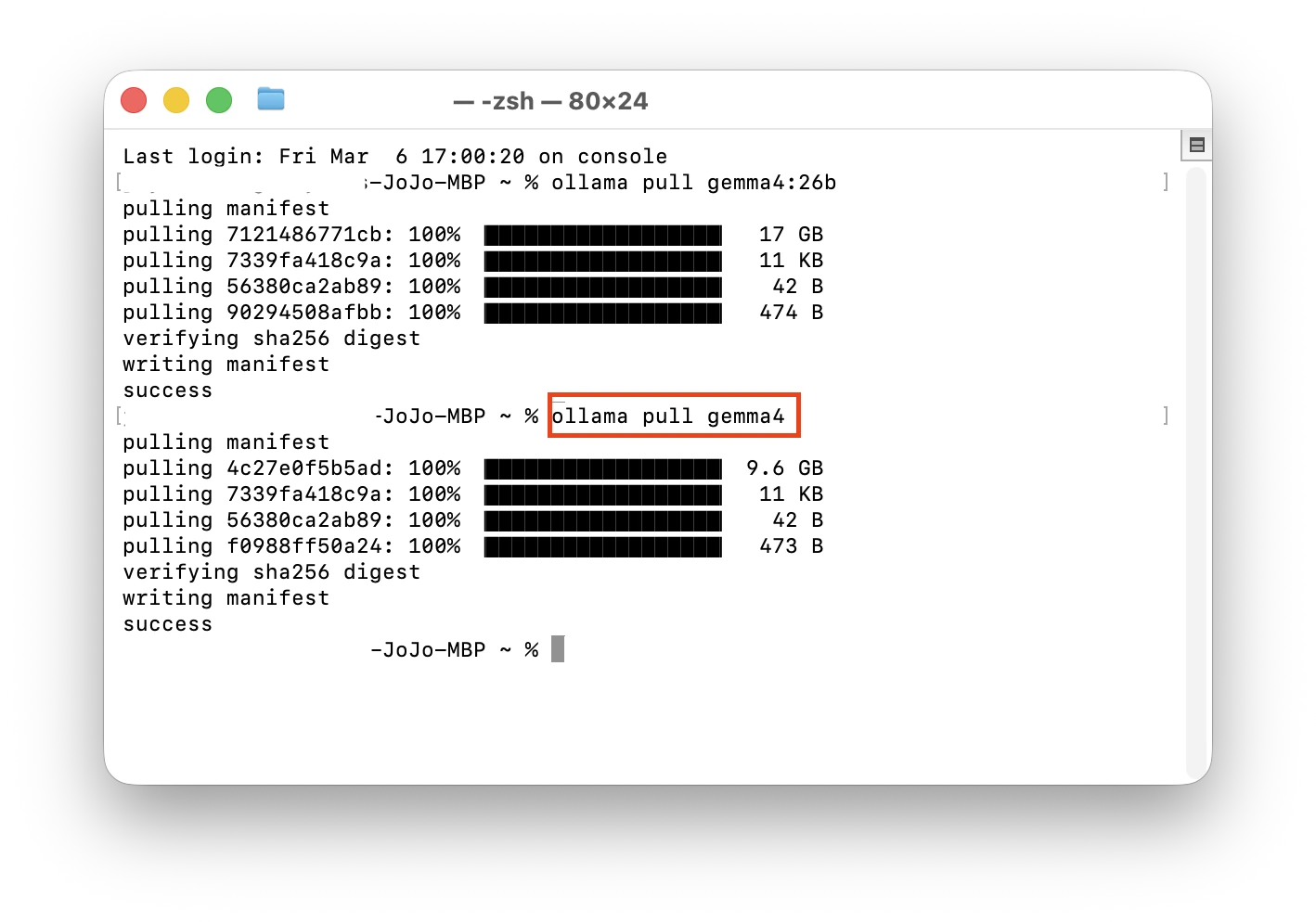
Step 3: Success! Testing Gemma 4’s Multimodal Features
Gemma 4 features a Thinking Mode. We conducted a quick test with the default version:
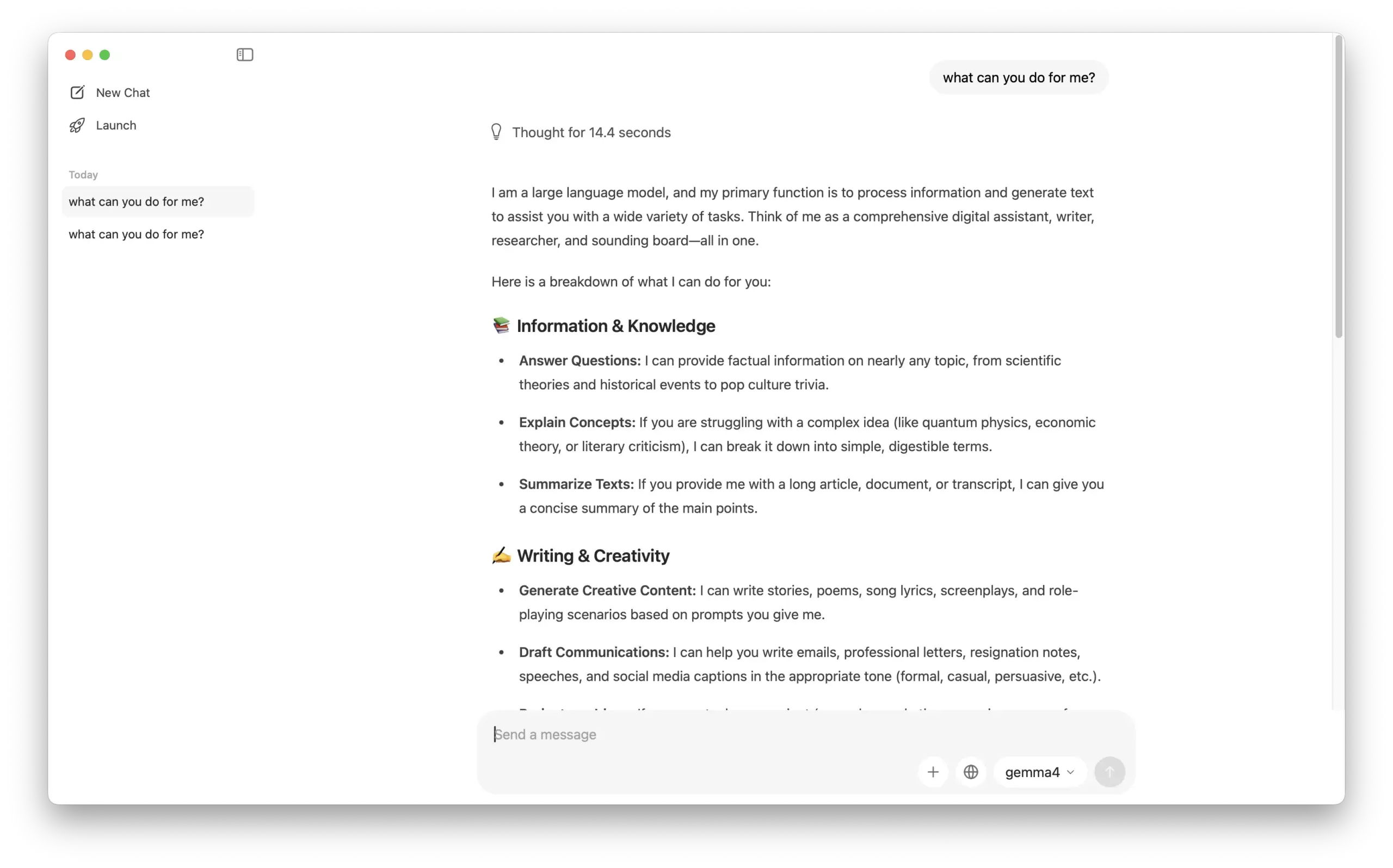
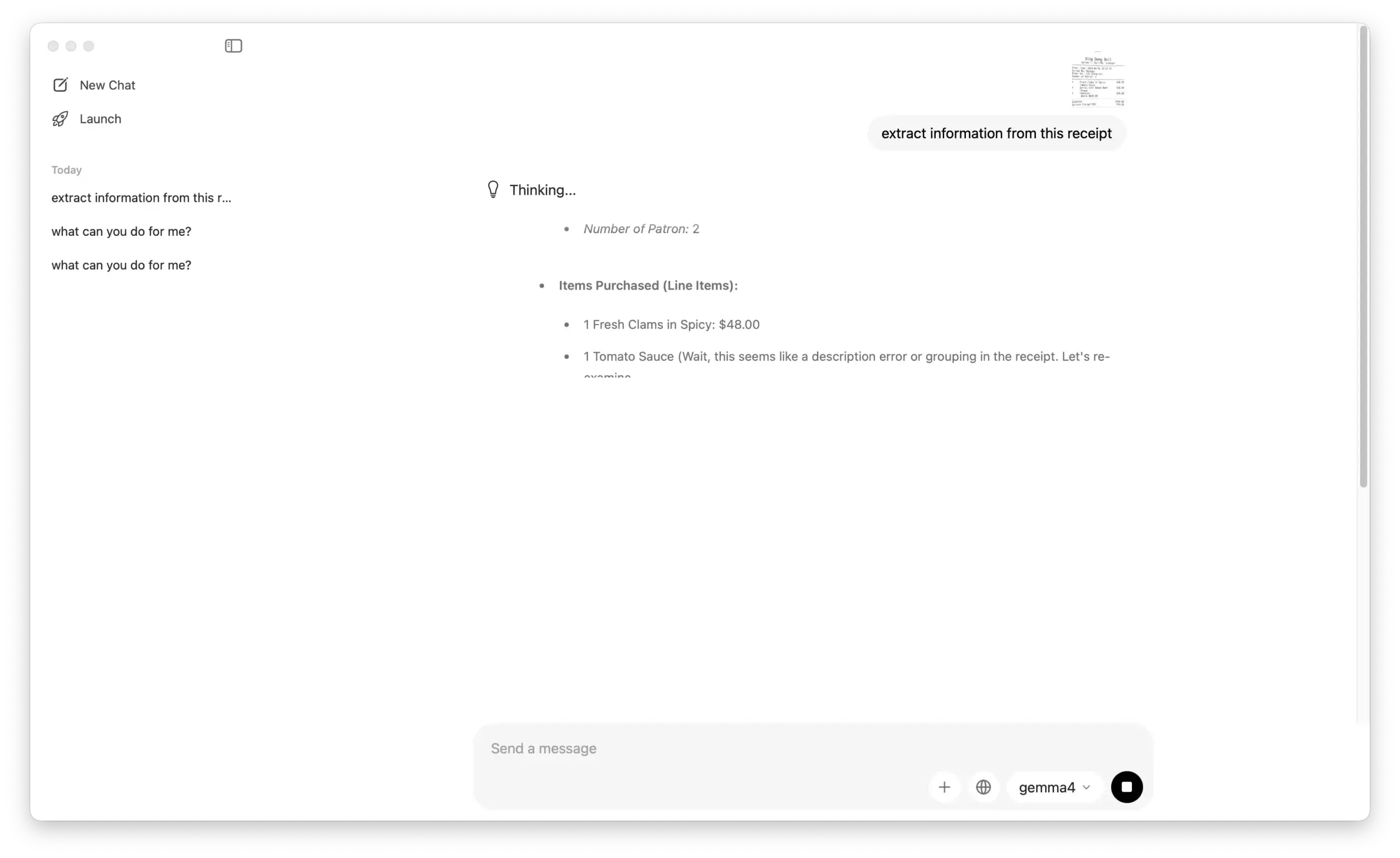
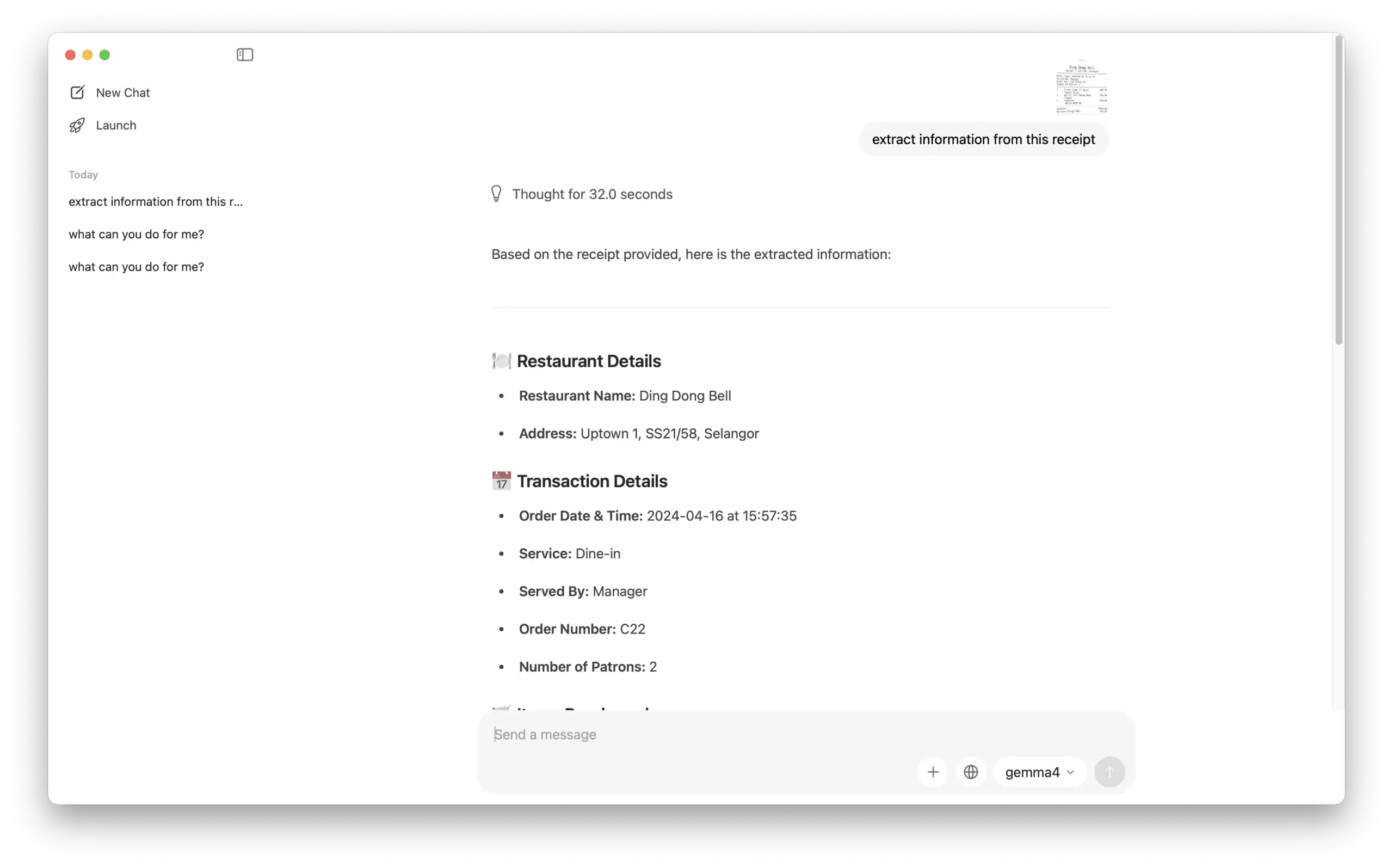
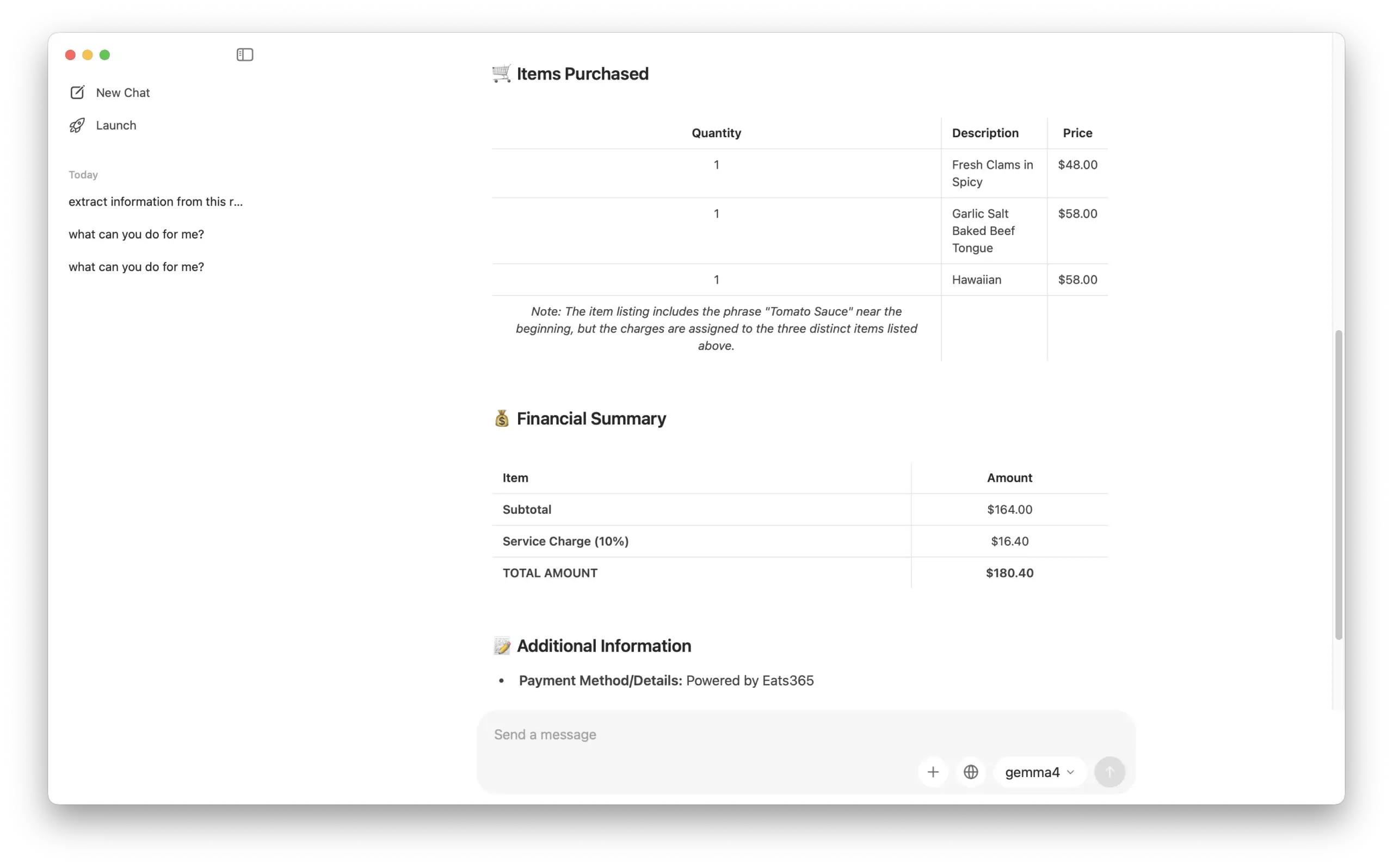
OCR & Data Extraction: We tested its ability to read data from a receipt image, and the results were 100% accurate.
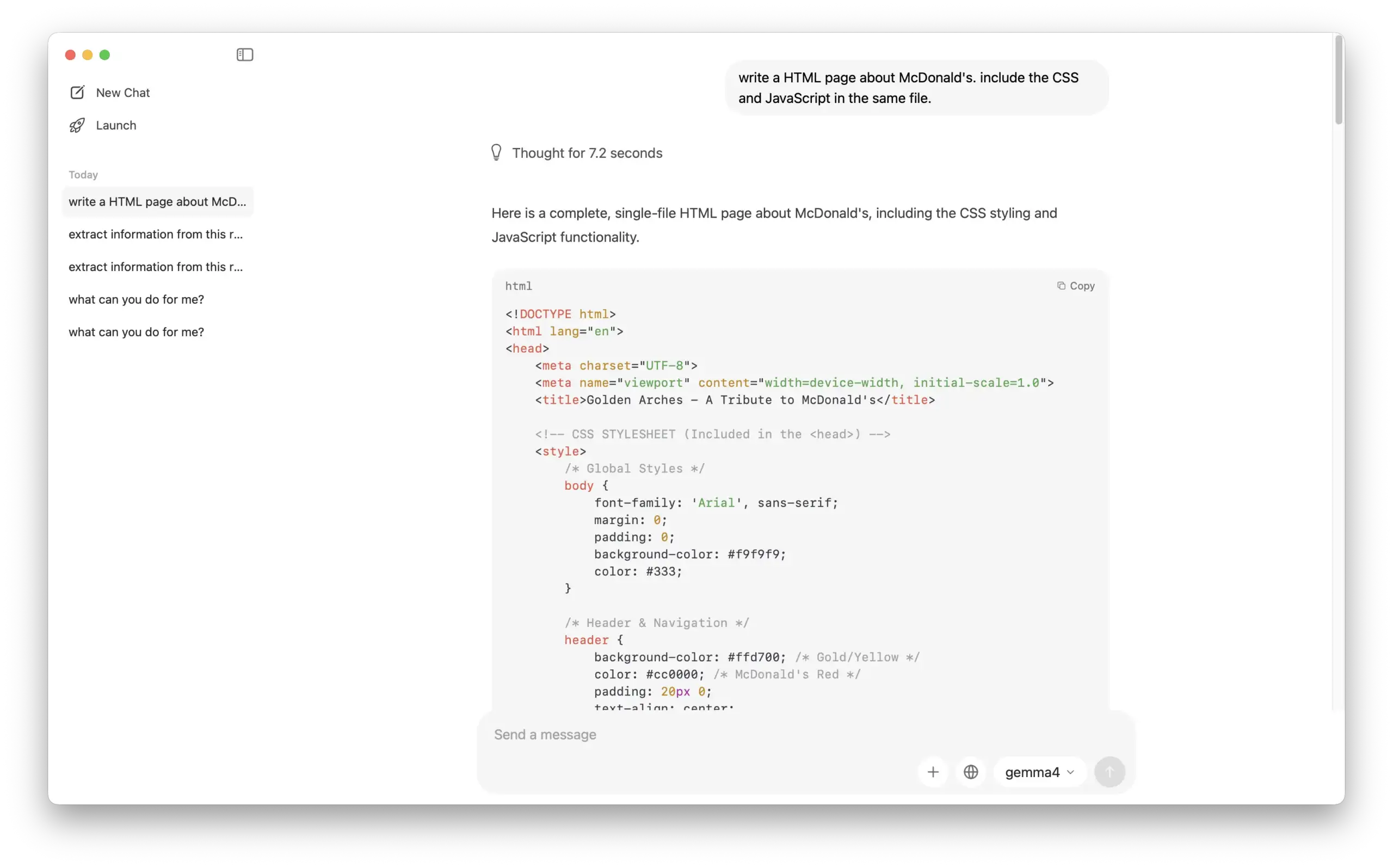
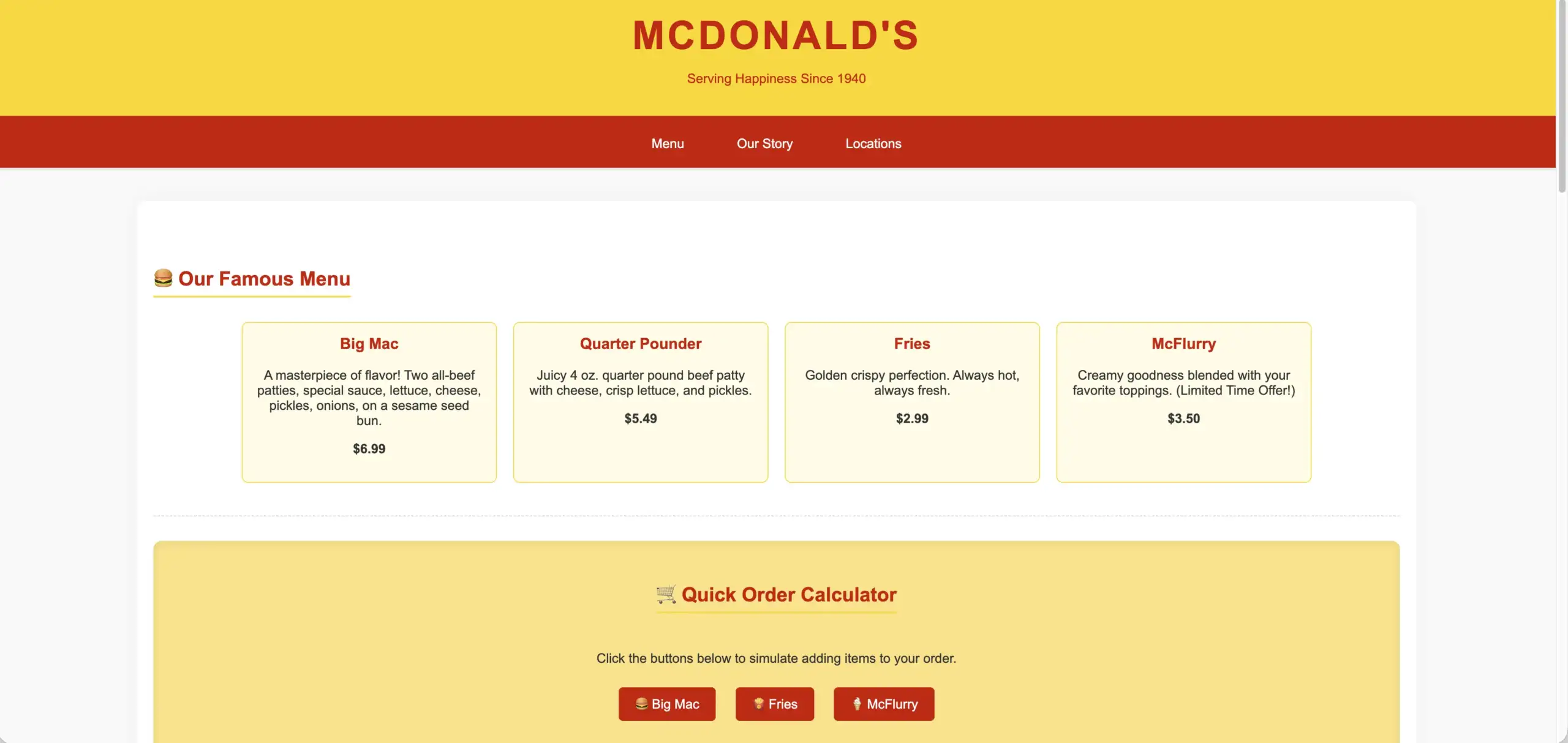
Coding: We also tested its coding capabilities, and it performed admirably.
Final Thoughts
We have to say, Gemma 4’s performance blew us away! For an AI model that runs smoothly on a local machine, its quality far exceeded our expectations.
We were initially concerned that smaller-scale models might sacrifice utility, but even the 4B version handles daily tasks with impressive stability. Whether it’s coherent creative writing, complex image analysis, or rapid web prototyping, Gemma 4 provides satisfying results. It gives users a reliable, efficient, and highly practical AI partner—without internet latency or privacy concerns.
About Us

Based in Hong Kong, JoJo Ventures is a specialized production studio blending years of cinematic expertise with the power of CGI and AI. As the AI wave transforms the creative industry, we help businesses break through traditional production bottlenecks. Our mission is to provide more efficient, creative, and scalable ways for companies to communicate their vision.
Our work is trusted by global giants and local icons alike, including
- Pfizer
- Bosch
- Siemens
- Wellcome
- Eu Yan Sang
- SaSa
From premium commercials to the next generation of AI-generated visuals, we are your partners in the AI era.
Let’s build the future of your brand.
📧 Email: business@jojo.ventures
📱 WhatsApp: +852 9853 7469